Tutorials
A Git Workflow for Your AI Hackathon Team
AI hackathon git workflow for teams: branches, a merge conflict you create and fix on purpose, a .gitignore for keys and a PR template.
By Starfield LabsPublished Beginner40 min

Before you start
- Git
- A terminal
You will run a two-person git workflow on your own machine: start a repo, work on branches, create a merge conflict on purpose and fix it, keep a key file out of git, and fill in a pull request description. It takes about 40 minutes and needs no API key and no GitHub account.
Level: Beginner. You need: Git and a terminal. Python 3 is used only to run a two-line program. Tested: 12 November 2026 on macOS with Git 2.50.1 and Python 3. Windows and Linux were not run. Two commands use sed -i.bak, which is the form that works on both macOS and Linux. Pull requests need GitHub and were not run. They are explained in text only.
In an AI hackathon, several people edit the same few files for a day or two, and a conflict in the last hour costs more than one in the first. Practising on a throwaway repo means the real one stays clean. When you are ready for the real thing, see the upcoming AI hackathons.
Why practise in a sandbox
Merge conflicts are not a sign that someone did something wrong. They happen whenever two people change the same line. The way to stop fearing them is to cause one in a place where nothing is at stake.
On GitHub, the shared copy of your project lives on a server. Git does not care what that server is. A folder created with git init --bare behaves the same way for everything in this tutorial. So we use one as a stand-in, and two teammates, Alice and Bob, each get their own working copy. The only thing missing is the website that adds pull requests on top.
See it running first
By the end, Bob's branch will have been merged with Alice's work, the conflict will be resolved, and a pull request description will be filled in from his commits:
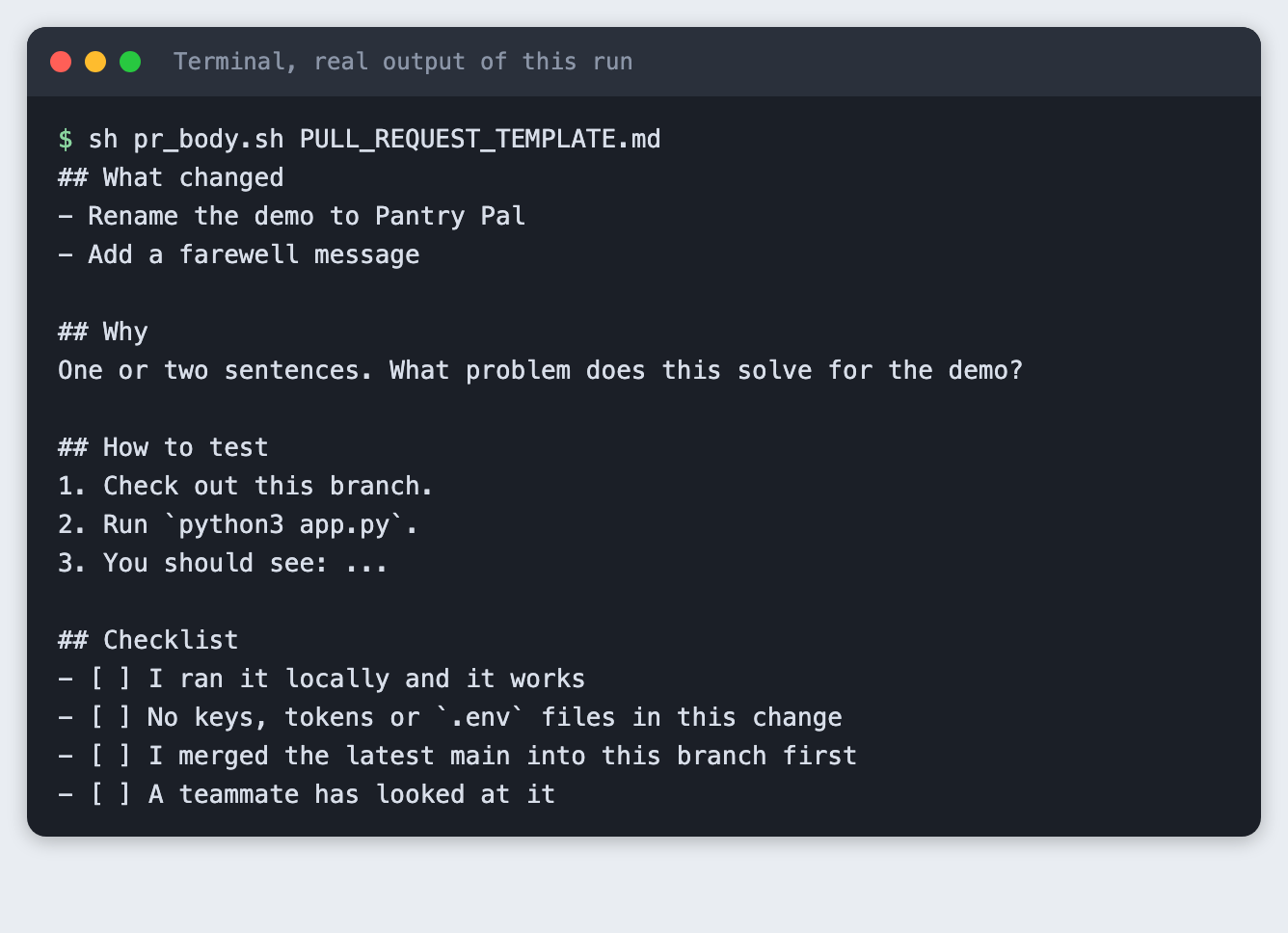
The rest of this tutorial builds that from scratch. Commit IDs differ on every run, so yours will not match the screenshots. The commit messages and structure will.
Step 1. Check git
git --version
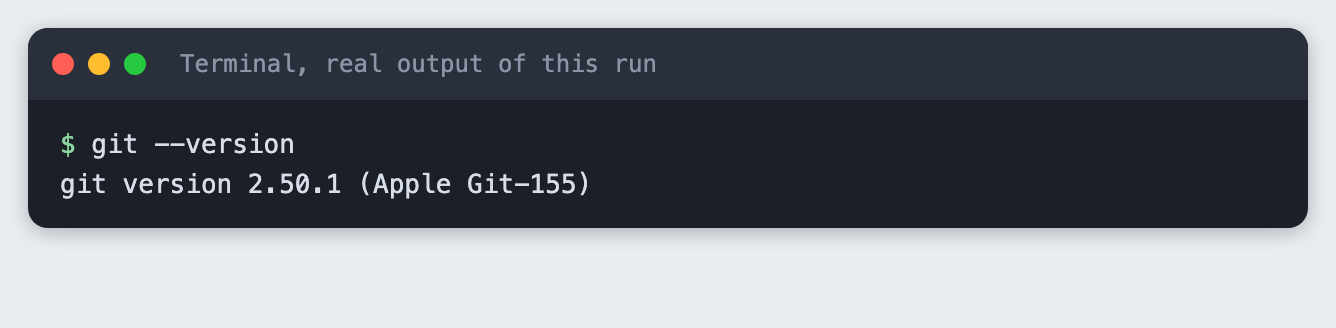
Any recent version works. git switch, used below, needs 2.23 or newer.
Step 2. Make the shared repo
Create a folder called sandbox. Inside it, make a bare repository. A bare repo has no working files. It only stores history, which is what a server does.
mkdir sandbox && cd sandbox
git init --bare -b main remote.git
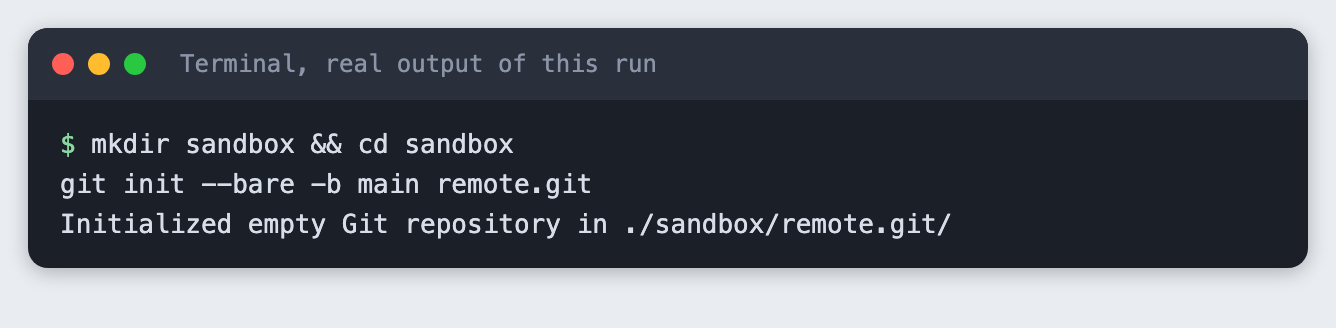
-b main names the default branch. From here on, remote.git plays the part of GitHub.
Step 3. Alice starts the project
Alice makes a folder, runs git init, tells git who she is and points the project at the shared repo. The name origin is the usual label for "the shared copy".
mkdir alice && cd alice && git init -b main
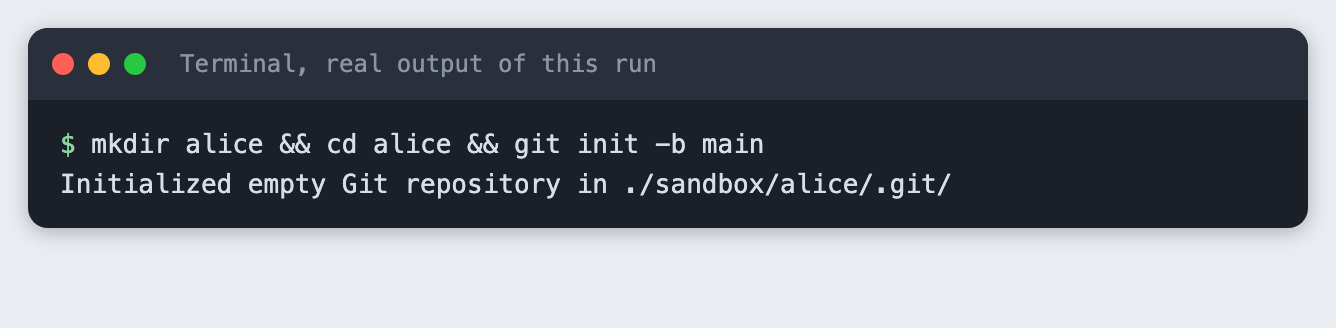
git config user.name "Alice" && git config user.email "alice@example.com" && git remote add origin ../remote.git && git remote -v

git status -sb
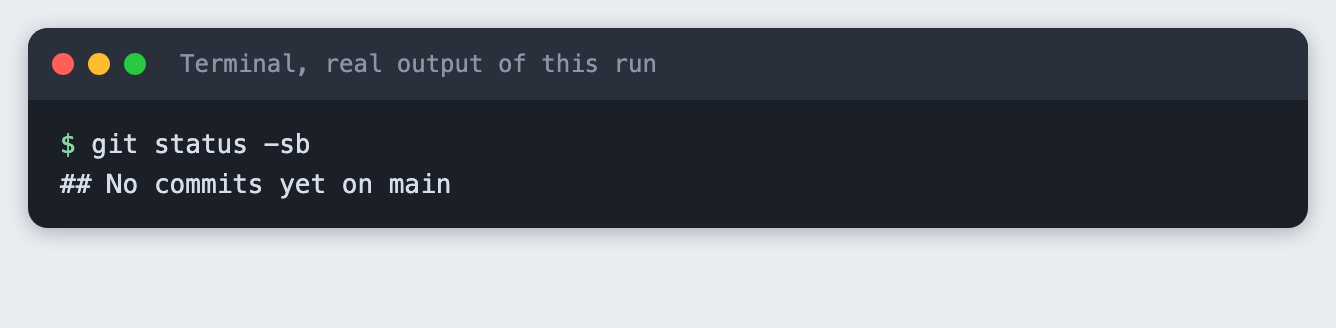
git config user.name and user.email are set per repo here, so the two teammates can share one computer. On your own machine you set them once with --global. The email is a made-up address.
Step 4. Keep keys out of git
Alice copies in the starter program and a .gitignore, then creates a .env file that holds a made-up key. Here is the program:
TITLE = "Hackathon demo"


def greet(name):
    return f"Welcome to {TITLE}, {name}!"


if __name__ == "__main__":
    print(greet("team"))
File: template/app.py
And here is the .gitignore:
# Keys and local settings. Never committed.
.env
.env.*
!.env.example

# Python
.venv/
__pycache__/
*.pyc

# Editor and OS files
.DS_Store
.vscode/
File: template/.gitignore
The first block ignores .env and any .env.something file, but the line starting with ! keeps .env.example trackable. That is the file where you list key names with no values, so teammates know what to set up.
cp ../../template/app.py ../../template/.gitignore . && echo 'DEMO_SERVICE_KEY=fake-value-for-this-tutorial' > .env && git status --short

git check-ignore -v .env
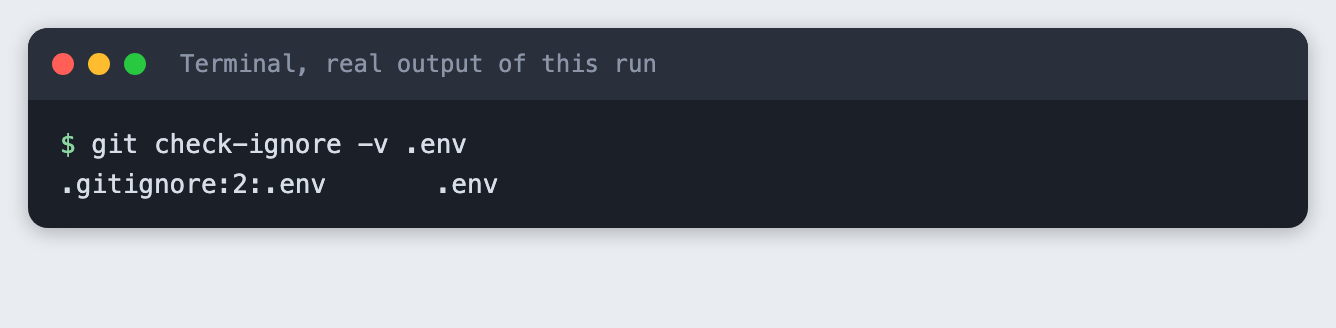
git status lists app.py and .gitignore as new files and does not list .env. git check-ignore -v explains why: line 2 of .gitignore matches it. Use that command whenever you wonder why a file is missing from git status.
Step 5. Check what a mistake looks like
Alice tries to add the .env file anyway:
git add .env
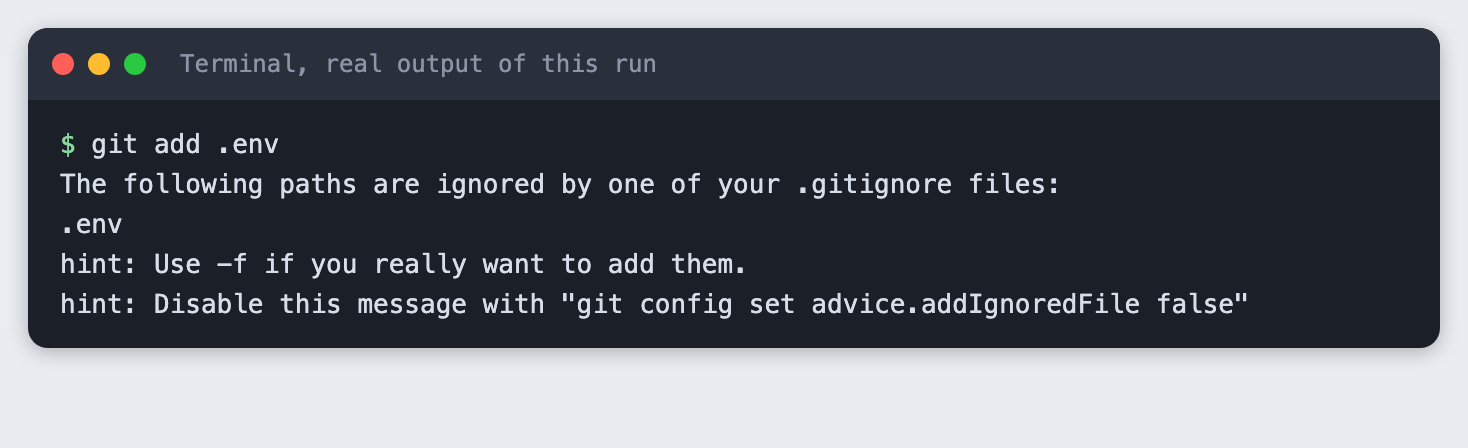
Git refuses and exits with code 1. The hint mentions -f. Do not use it for a key file. The .gitignore only protects files that were never committed. If a key is committed and pushed, deleting the file later does not remove it from the history. Treat that key as leaked and replace it at the provider.
Step 6. Commit and push the starting point
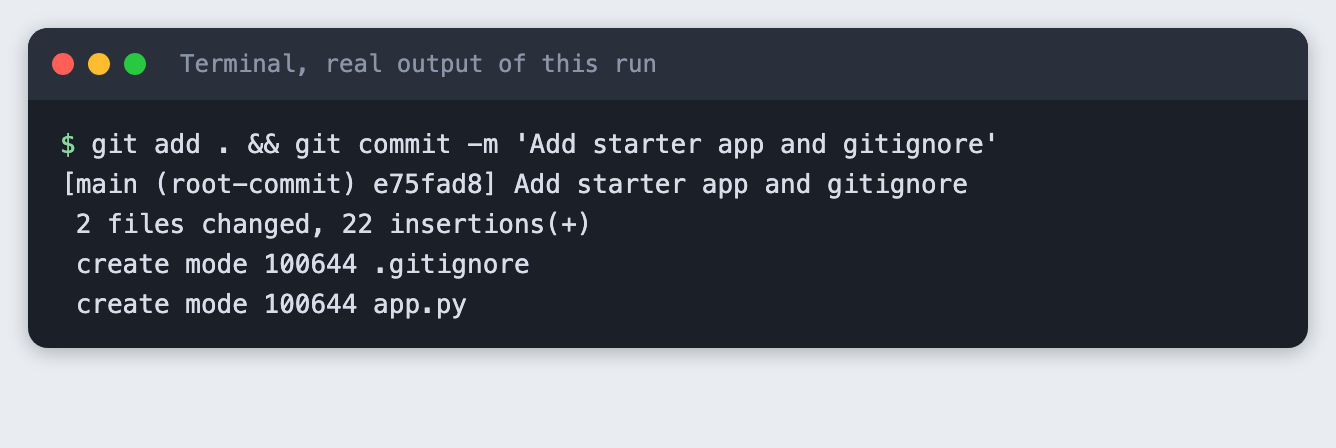
git add . && git commit -m 'Add starter app and gitignore'
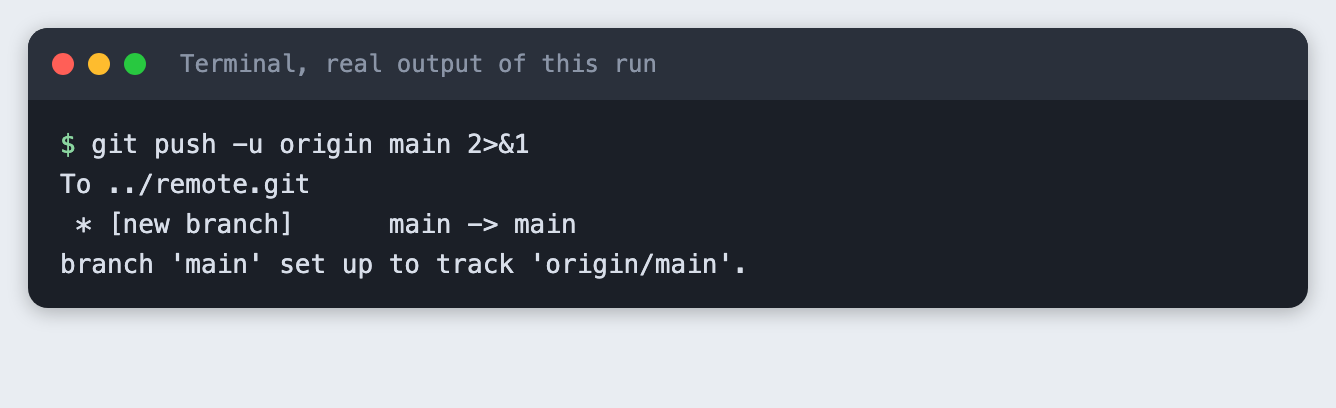
git push -u origin main 2>&1
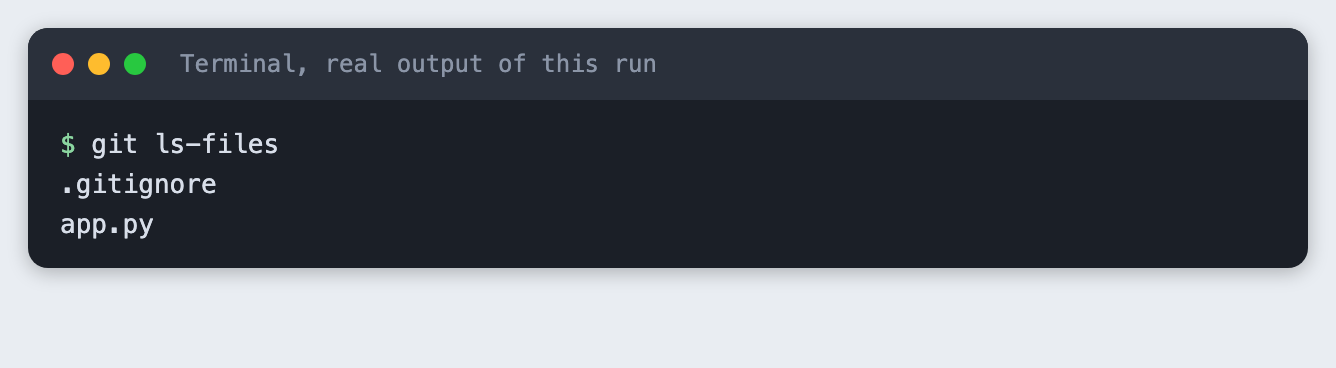
git ls-files
git log --oneline
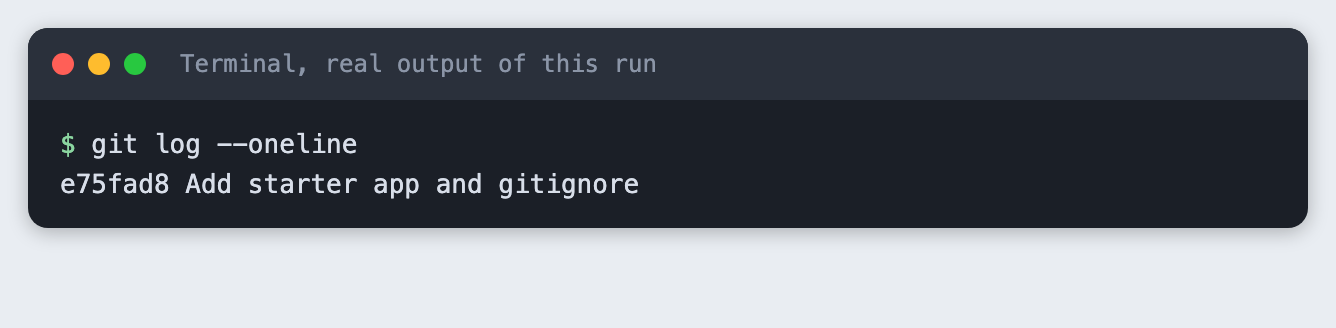
git ls-files lists only .gitignore and app.py. The .env file is not in the repo. The push sent main to the shared repo, and -u told git to remember that main tracks origin/main.
Step 7. Bob clones the project
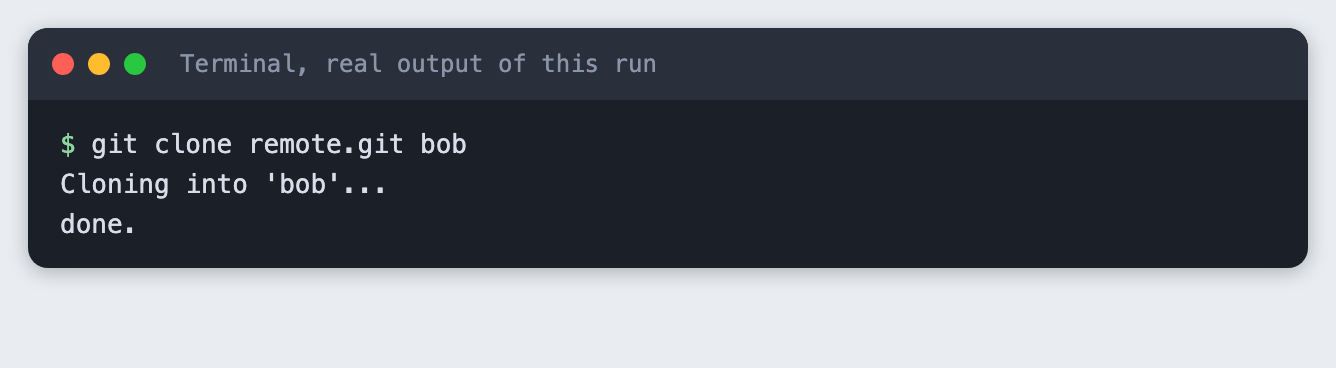
git clone remote.git bob
git config user.name "Bob" && git config user.email "bob@example.com" && git config --get-regexp "^user"

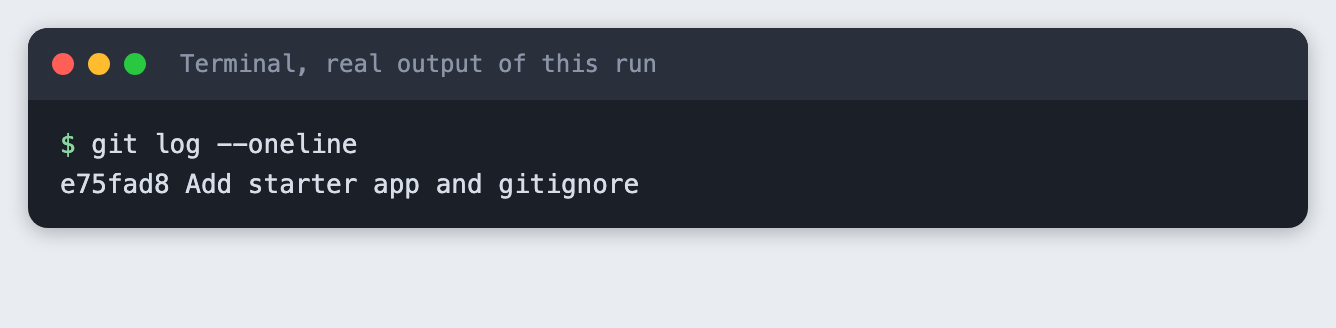
git log --oneline
ls -A
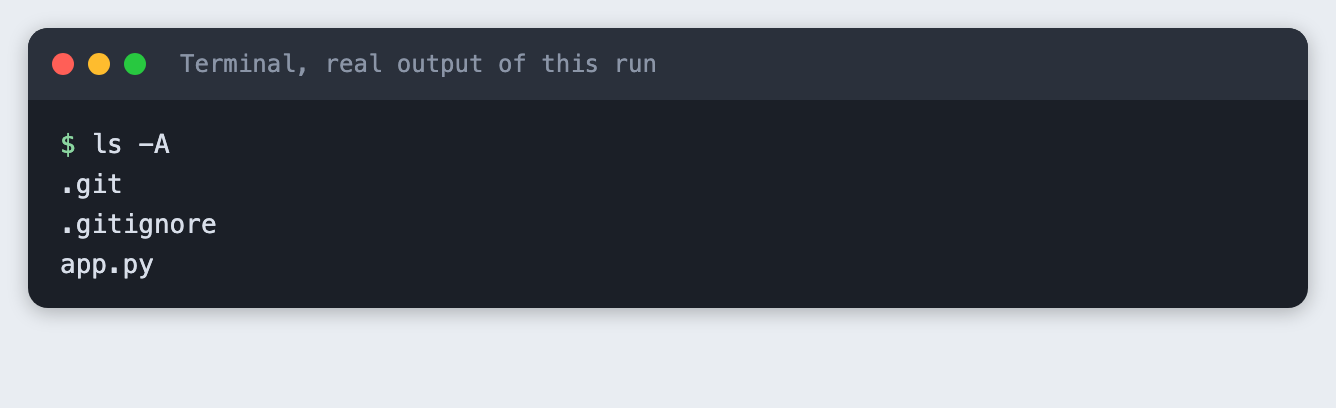
Bob has the history and both files. He does not have Alice's .env. Each teammate creates their own, from the names in .env.example.
Step 8. Alice works on a branch
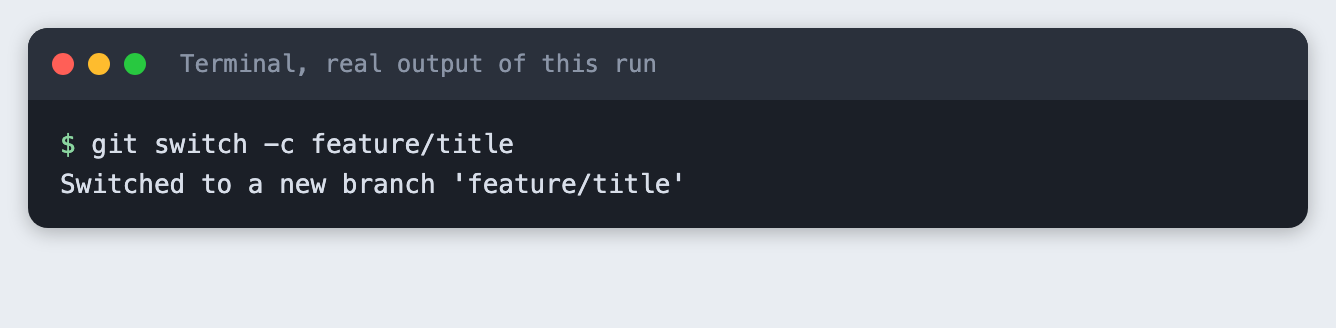
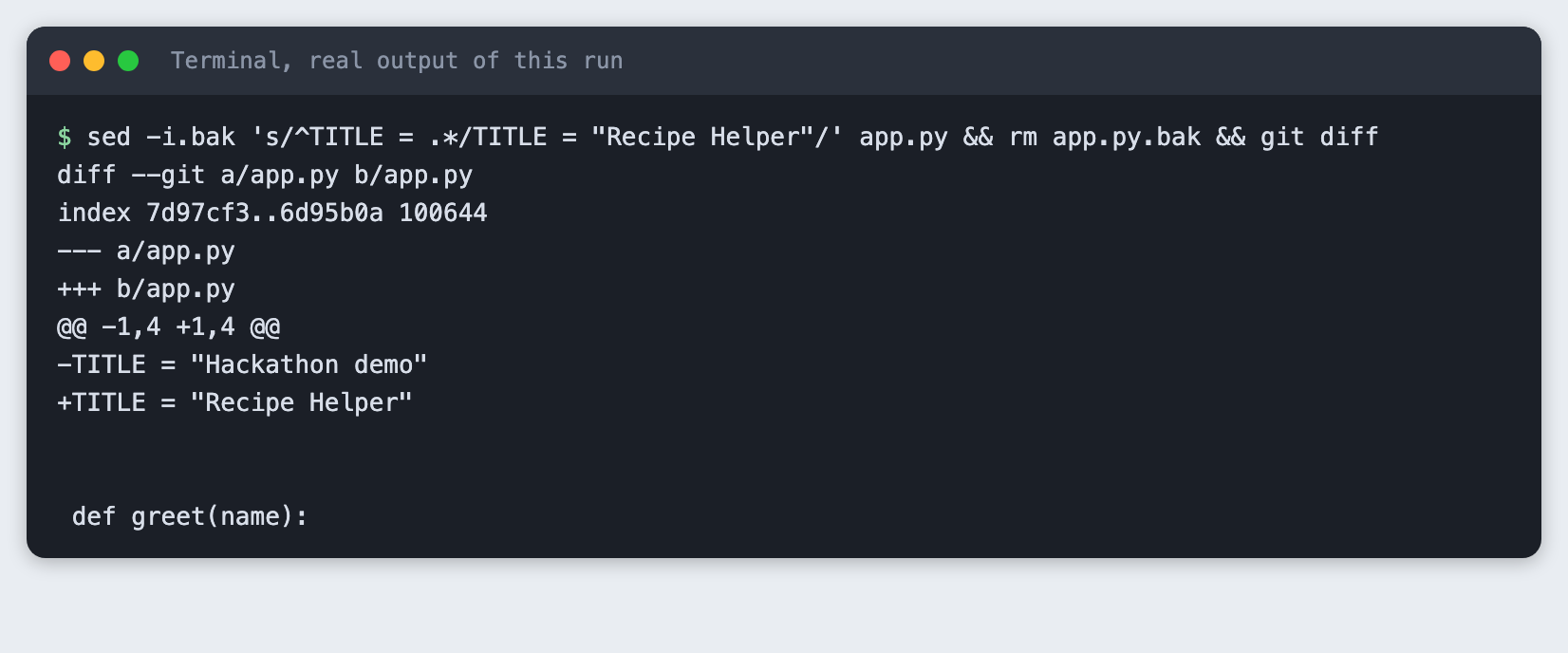
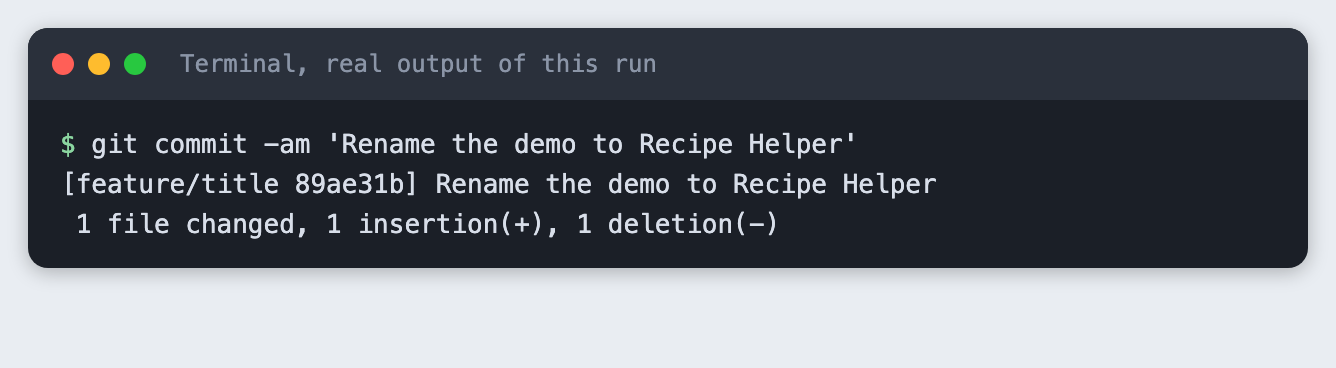
A branch is a named line of work. Teams usually keep main working and do new work on branches. git switch -c creates a branch and moves onto it. Alice changes line 1 of app.py. In the screenshot the change is made with sed. In your editor you just change the text.
git switch -c feature/title
sed -i.bak 's/^TITLE = .*/TITLE = "Recipe Helper"/' app.py && rm app.py.bak && git diff
git commit -am 'Rename the demo to Recipe Helper'
git log --oneline --graph --decorate --all
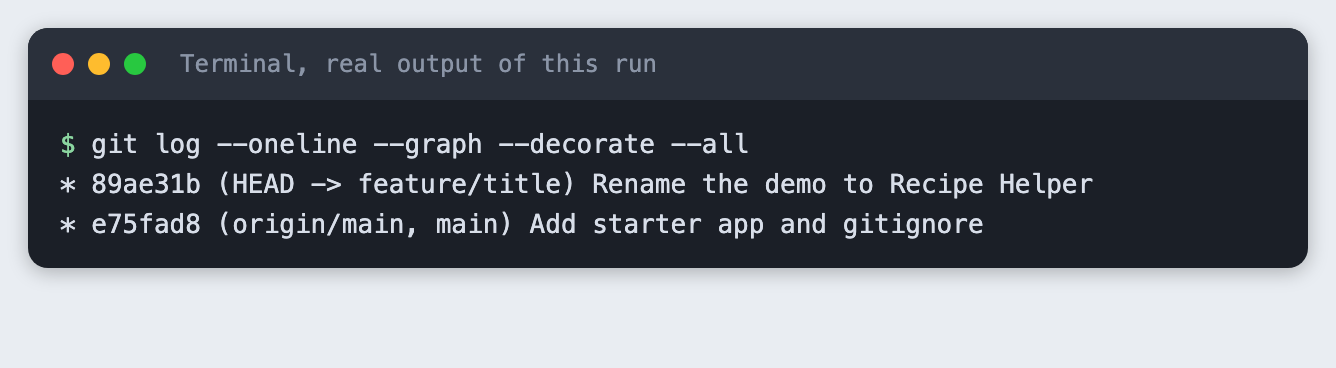
git diff shows the old line with a minus and the new line with a plus. The log shows feature/title one commit ahead of main.
Step 9. Alice merges and pushes
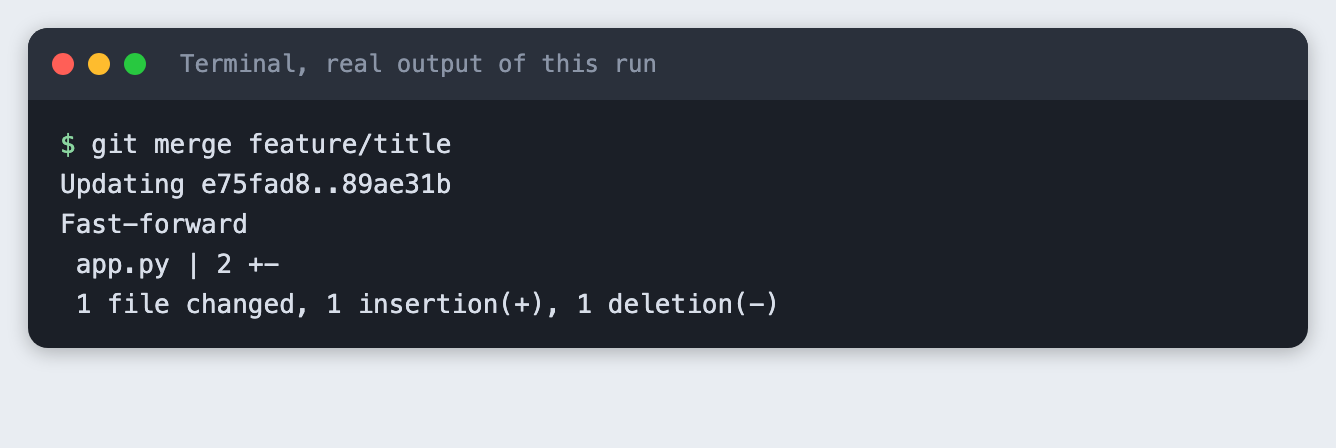
On a real team this is where a pull request happens. Here Alice does the merge herself. Because nobody else changed main, git only moves the label forward. That is called a fast-forward.
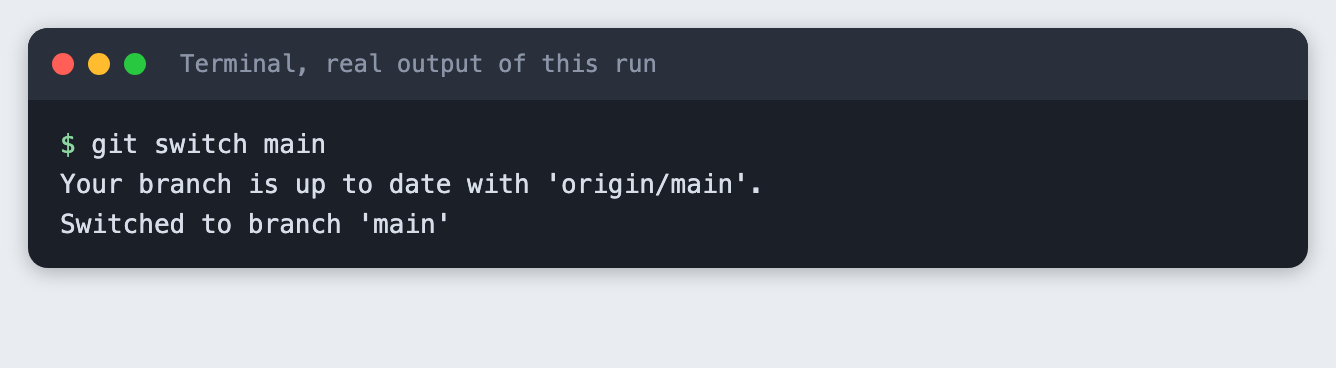
git switch main
git merge feature/title
git push origin main 2>&1
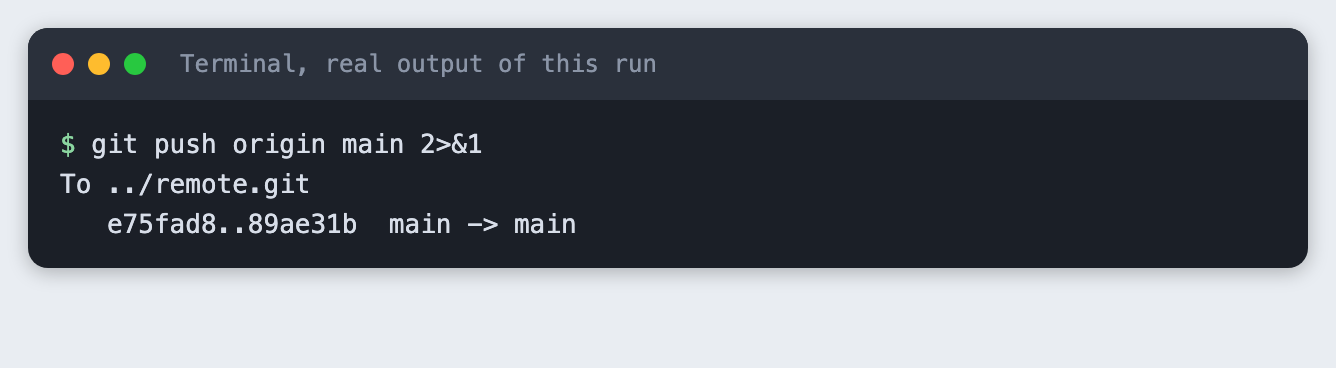
git log --oneline
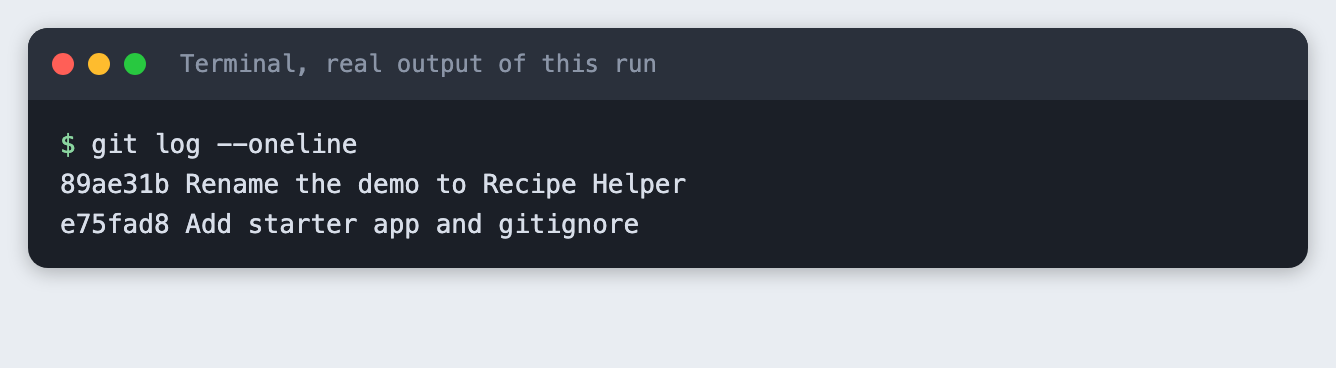
main on the shared repo now has the new title. Bob does not know yet.
Step 10. Bob works on his own branch
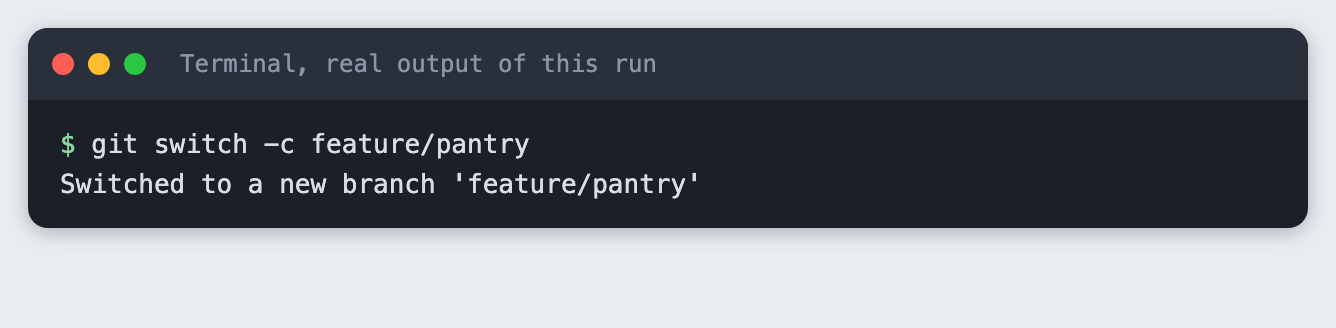
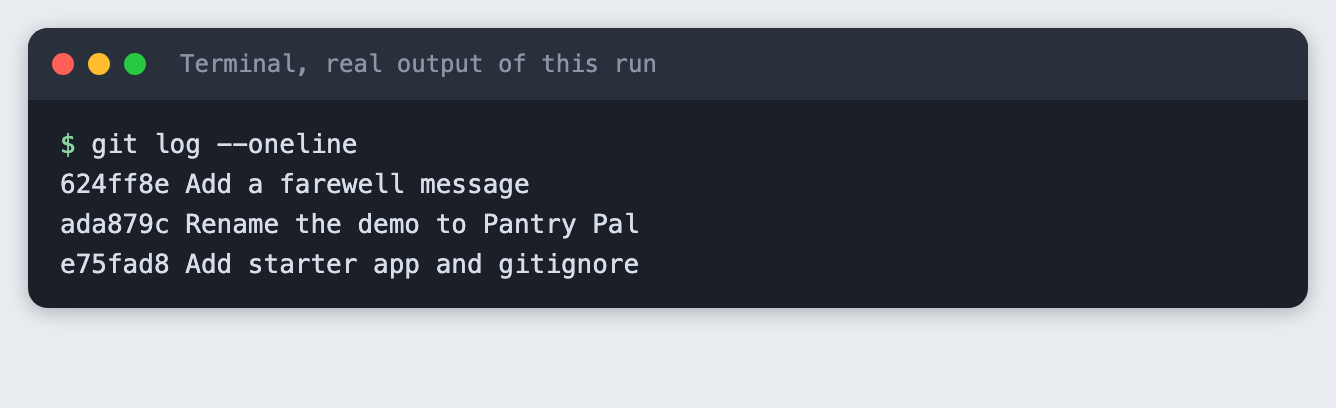
At the same time, Bob starts from the old main. He changes the same line 1 to a different title, and adds a farewell function at the end of the file. Two commits, two different edits.
git switch -c feature/pantry
sed -i.bak 's/^TITLE = .*/TITLE = "Pantry Pal"/' app.py && rm app.py.bak && git commit -am 'Rename the demo to Pantry Pal'

printf '\n\ndef farewell(name):\n return f"Thanks for visiting, {name}!"\n' >> app.py && git commit -am 'Add a farewell message'

git log --oneline
Step 11. Bob sees that main has moved
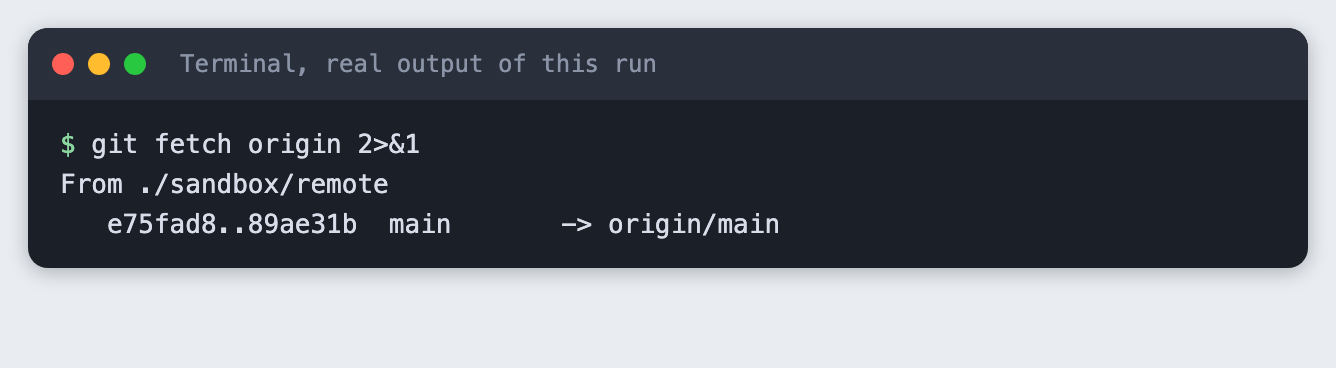
git fetch downloads what is new on the shared repo without touching Bob's files. The graph shows two lines of history that split from the same starting commit.
git fetch origin 2>&1
git log --oneline --graph --decorate --all
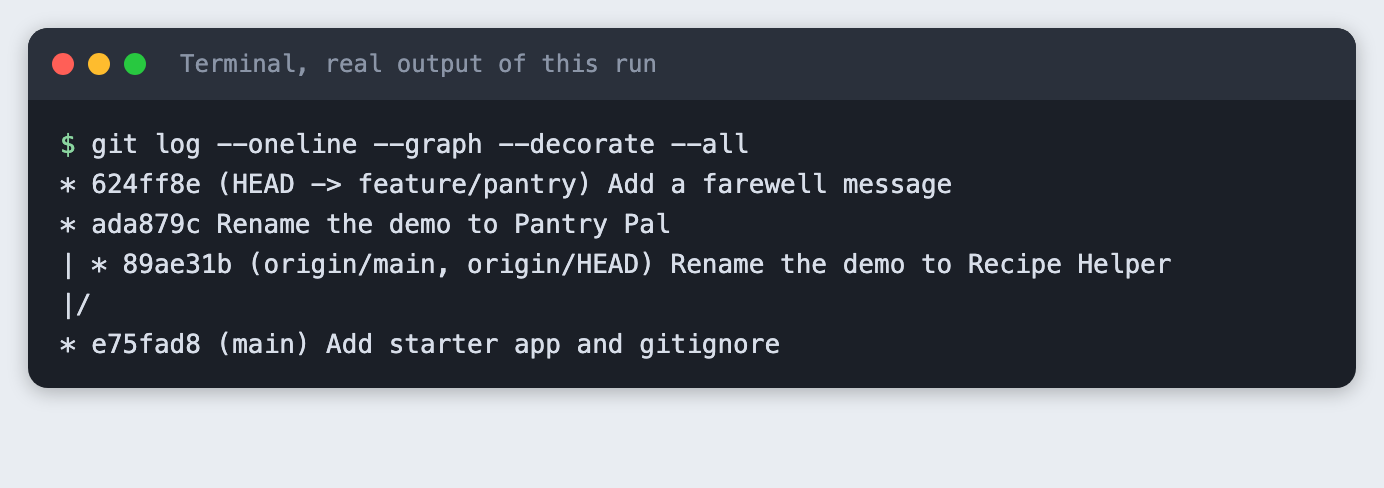
Run git fetch before you start work and before you merge. It never changes your files, so it is safe to run any time.
Step 12. Create the conflict
Before asking for review, Bob merges the latest main into his branch. That way he finds problems on his side, not in the reviewer's. Alice and Bob both changed line 1, so git cannot choose between them.
git merge origin/main
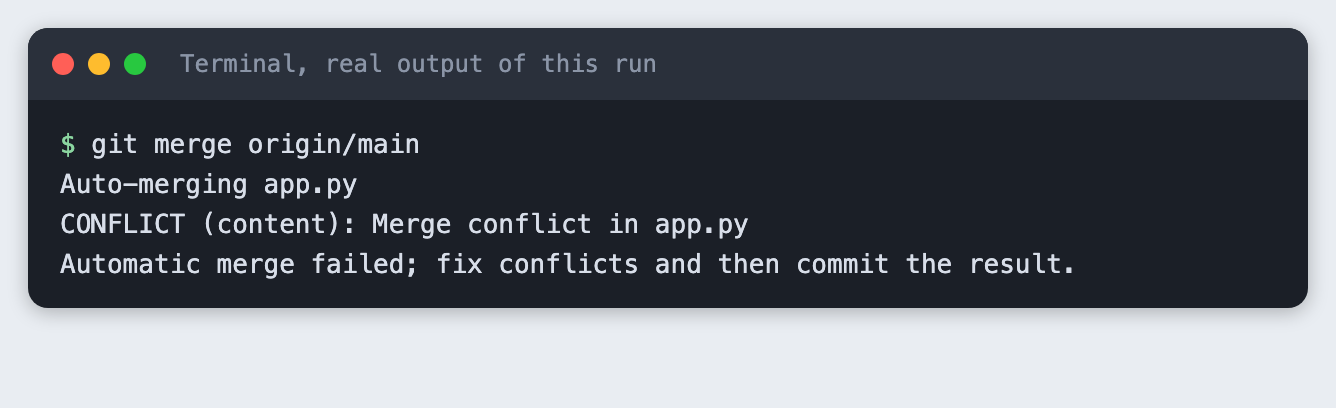
Git merged what it could. The farewell function was merged automatically because only Bob touched it. Only app.py line 1 needs a human decision. Git exits with code 1 and leaves the merge half finished.
Step 13. Read the markers
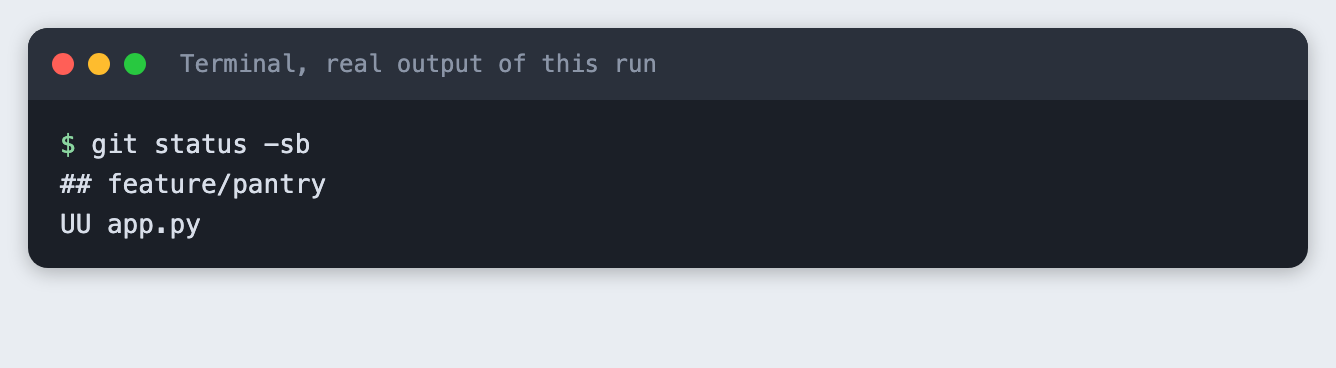
Git writes both versions into the file, between marker lines.
git status -sb
cat app.py
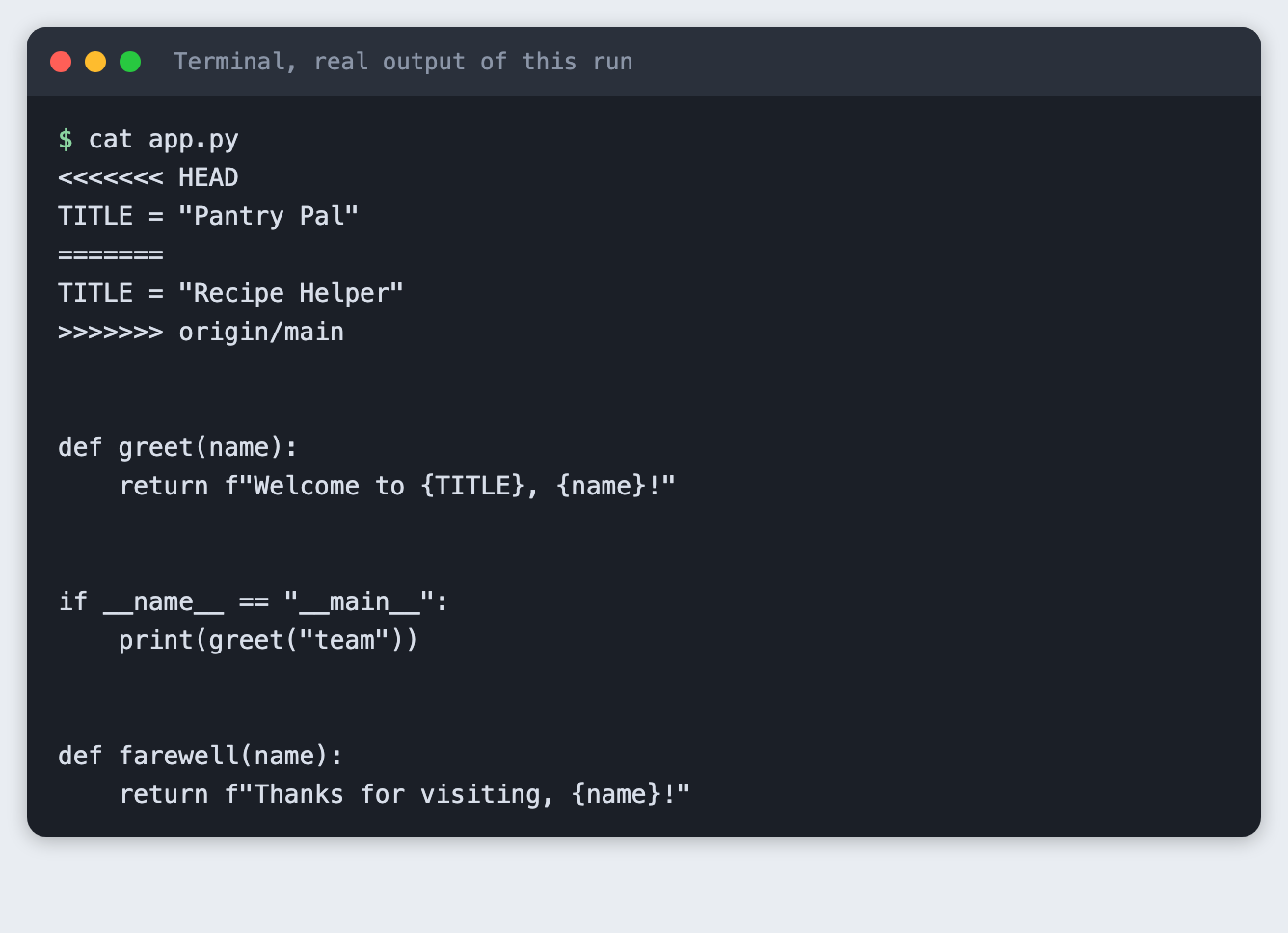
UU means both sides modified the file. Between <<<<<<< HEAD and ======= is Bob's version. Between ======= and >>>>>>> origin/main is Alice's. Your job is to decide what the file should say and delete all three marker lines.
Step 14. Back out safely
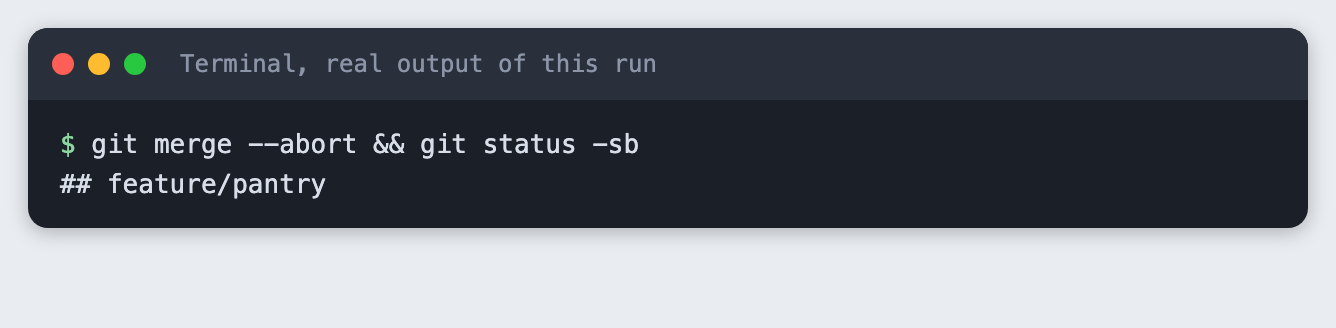
If you are not sure what to do, you do not have to decide right now. git merge --abort puts everything back as it was before the merge. Here we abort, check that the branch is clean, and merge again so we can resolve it properly.
git merge --abort && git status -sb
git merge origin/main
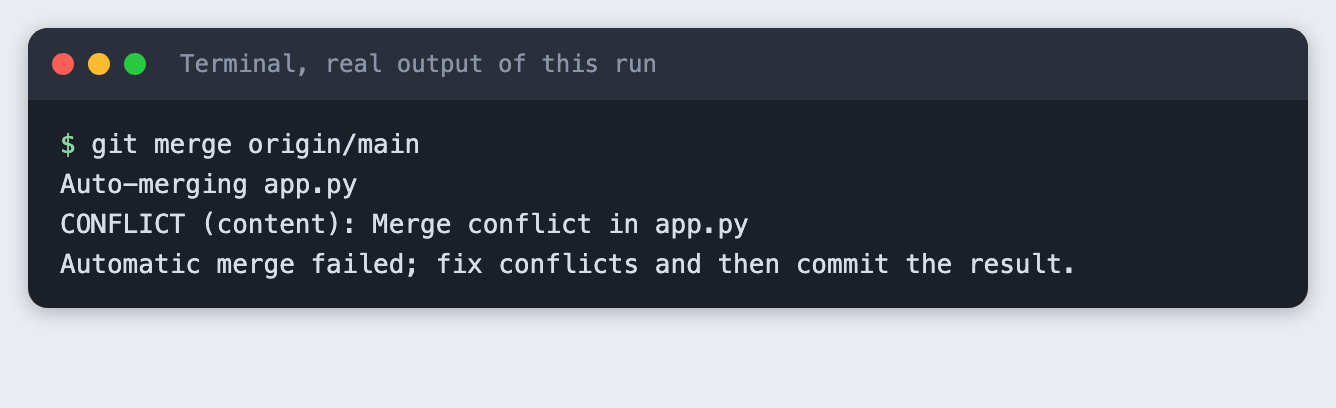
The conflict is the same on the second try. It is deterministic, and nothing was lost. Git also exits with code 1 here, as in Step 12. An exit code of 0 means success, and any other number means the command did not finish. A conflict is the second kind, so a script that runs git merge stops at this point. The screenshots show the command and git's own output only, so the exit code is not printed in them.
Step 15. Resolve it
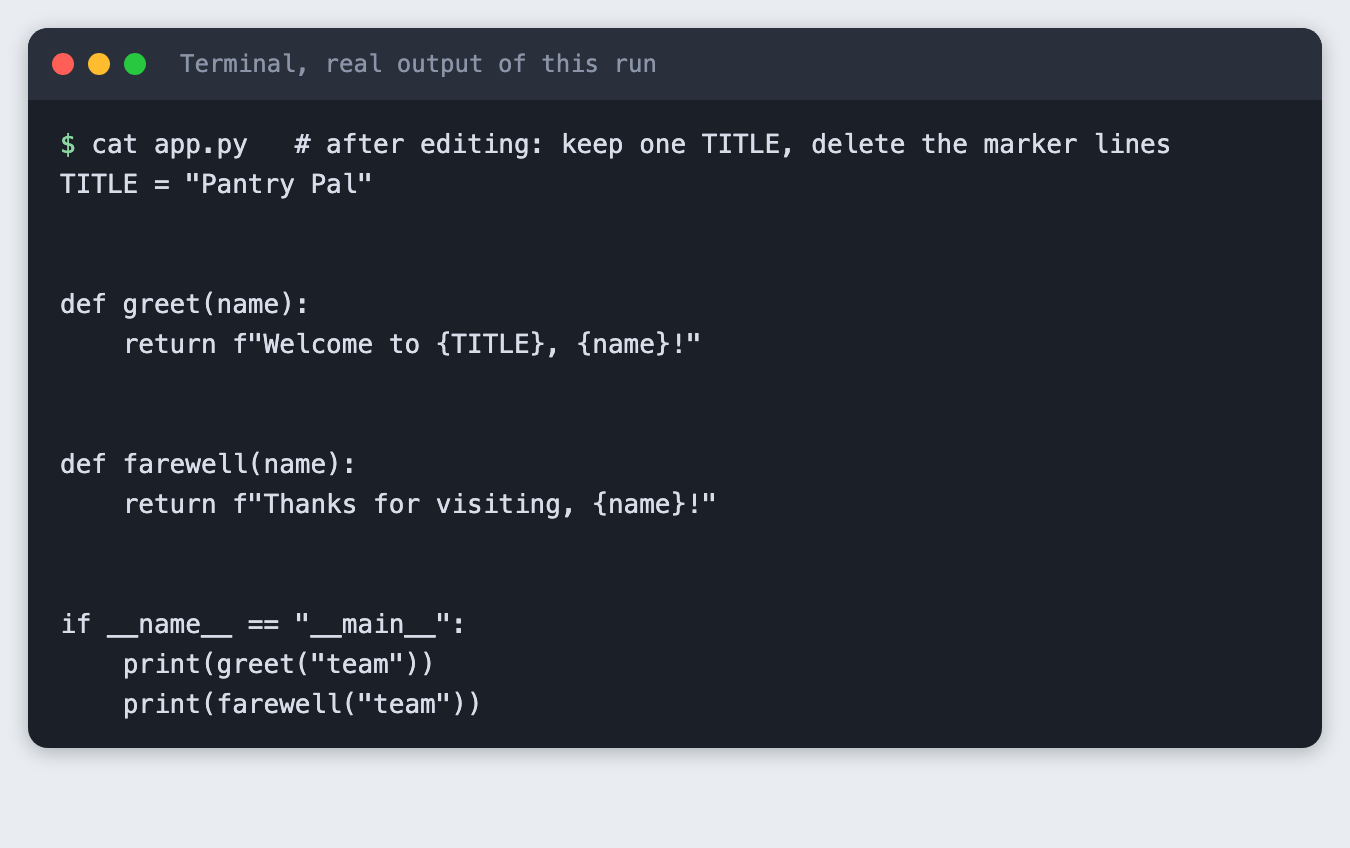
Bob keeps his title, "Pantry Pal", because the team decided on it. He keeps farewell, and removes the markers. In your editor you delete the marker lines and the line you do not want. Here the whole file is rewritten so the result is exact. Then three checks: no markers left, the program runs, and only then git add and commit.
cat app.py # after editing: keep one TITLE, delete the marker lines
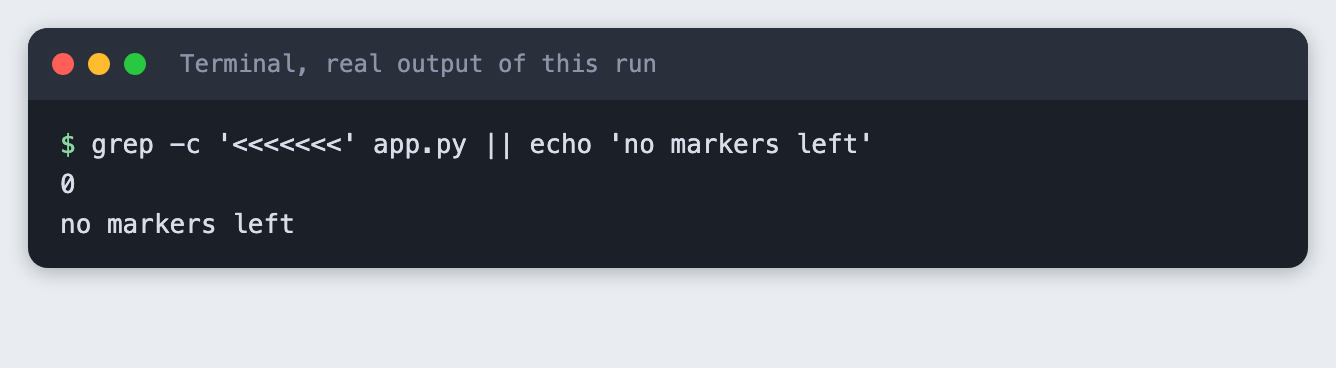
grep -c '<<<<<<<' app.py || echo 'no markers left'
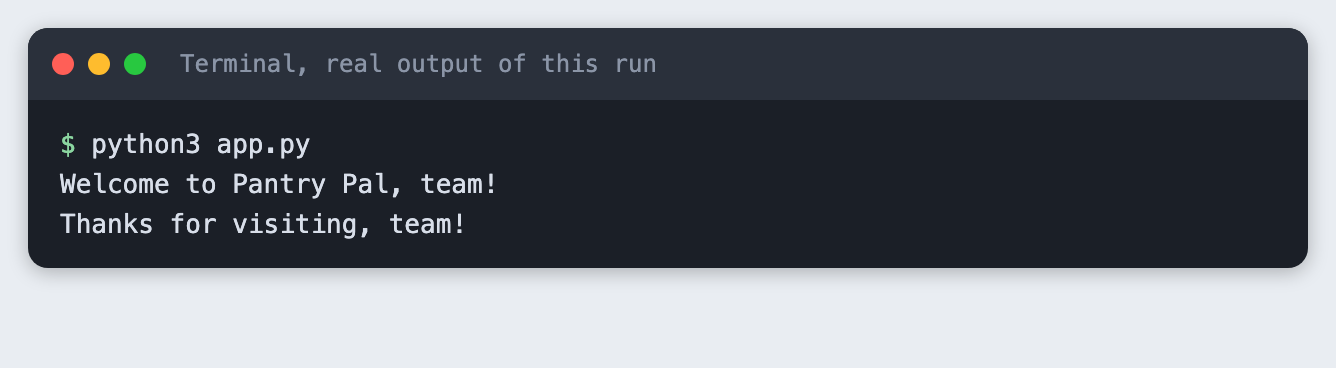
python3 app.py
git add app.py && git commit --no-edit

git log --oneline --graph --decorate
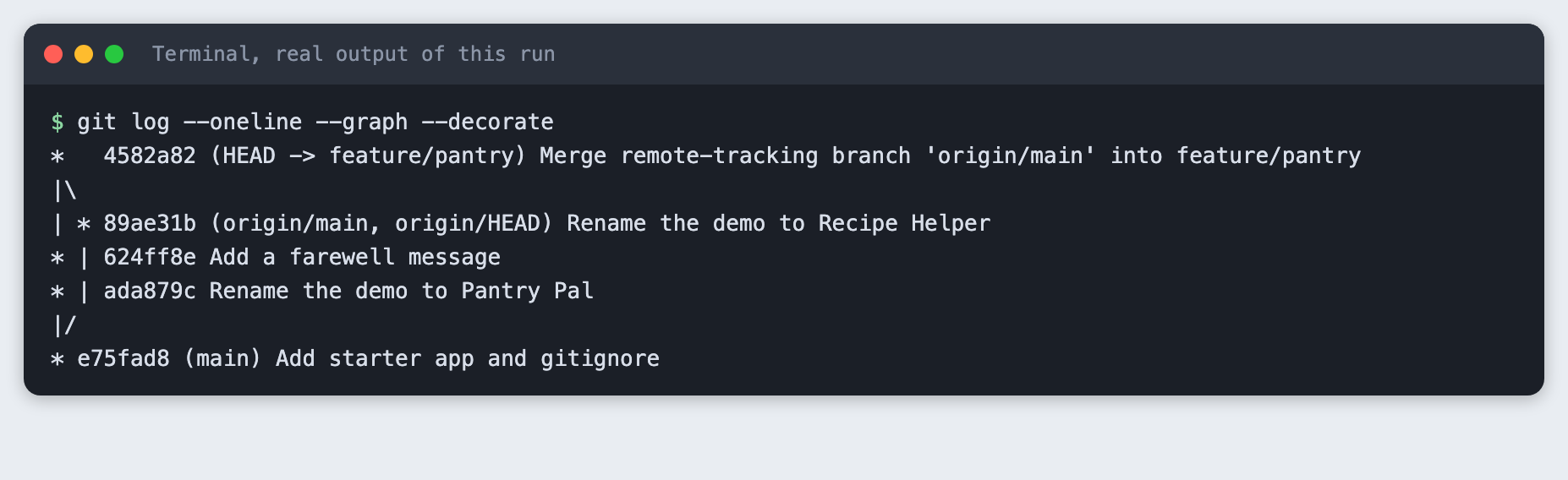
grep -c printed 0, so no markers are left. (grep exits with code 1 when it finds nothing, so the command adds a message after it to keep the run clean.) The program ran. The merge commit has two parents, one from each line of history. Run the program before you commit. A file with no markers can still be wrong.
Choosing whose line wins is a team decision, not a git one. Ask the other person if you are not sure.
Step 16. Push the branch
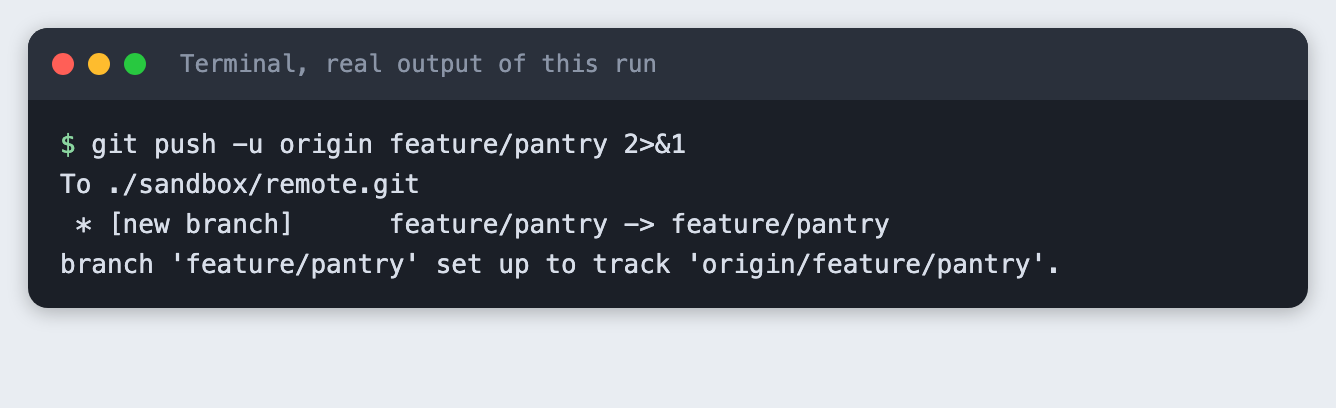
git push -u origin feature/pantry 2>&1
git -C ../remote.git branch
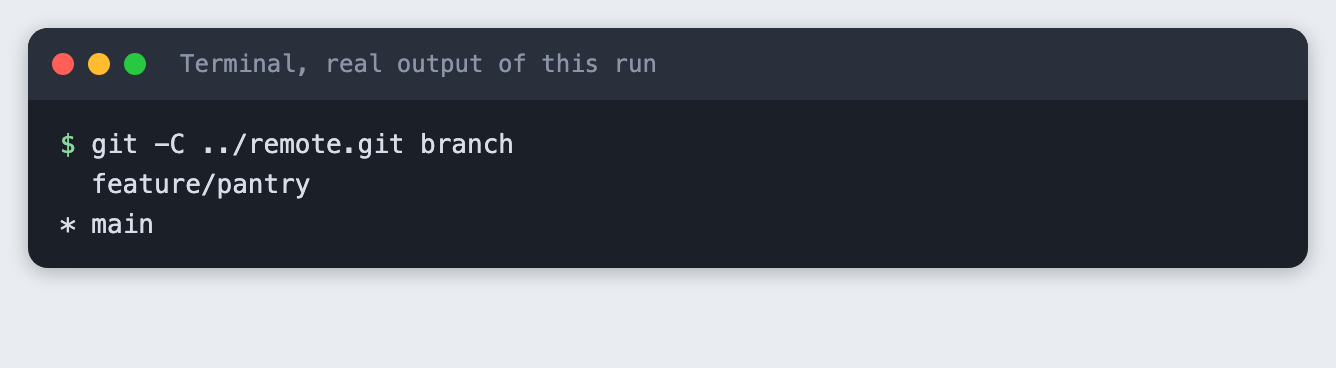
The shared repo now has main and feature/pantry. On GitHub this is the point where you click "Compare and pull request". That button is not part of git, so it was not run here.
Step 17. Write the pull request description
A pull request is a request to merge a branch, with a page for discussion and review. It is a GitHub feature, and it was not run in this tutorial because it needs an account. What you can practise locally is the description. Reviewers read it before the diff, so a short, consistent template helps them. This is the one used here:
## What changed
<!-- commits -->

## Why
One or two sentences. What problem does this solve for the demo?

## How to test
1. Check out this branch.
2. Run `python3 app.py`.
3. You should see: ...

## Checklist
- [ ] I ran it locally and it works
- [ ] No keys, tokens or `.env` files in this change
- [ ] I merged the latest main into this branch first
- [ ] A teammate has looked at it
File: template/PULL_REQUEST_TEMPLATE.md
On GitHub, a file named PULL_REQUEST_TEMPLATE.md in the .github folder fills the description box for you. That placement is from GitHub's documentation and was not tested here. The script below does a smaller job that you can check: it fills the "What changed" list from your commits.
#!/bin/sh
# Print the PR template with this branch's commits filled in.
# Usage: sh pr_body.sh <template> [base-ref]
template="$1"
base="${2:-origin/main}"
while IFS= read -r line; do
  case "$line" in
    *"<!-- commits -->"*) git log --reverse --no-merges --format='- %s' "$base"..HEAD ;;
    *) printf '%s\n' "$line" ;;
  esac
done < "$template"
File: pr_body.sh
git diff --stat origin/main...HEAD
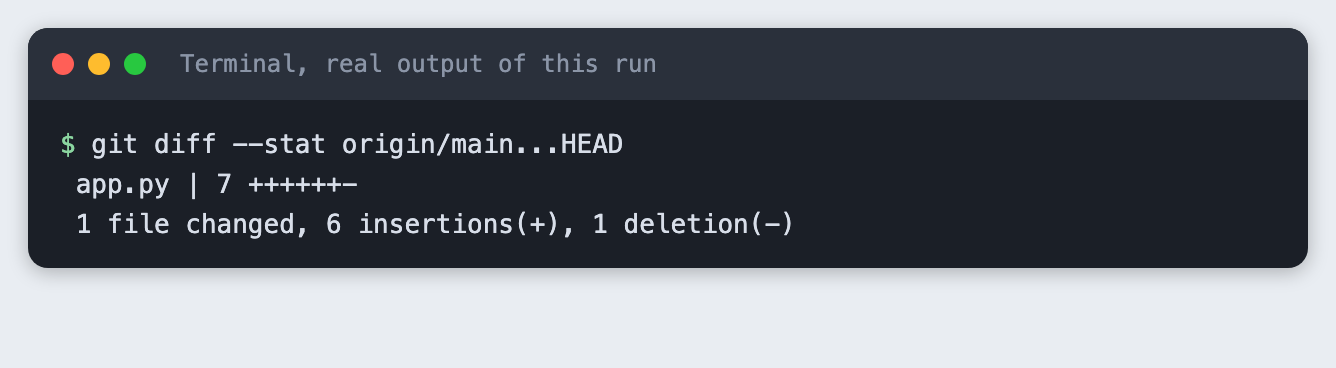
sh pr_body.sh PULL_REQUEST_TEMPLATE.md
Two commits are listed. The merge commit is left out on purpose. You still write "Why" and "How to test" yourself, because git cannot know them.
Troubleshooting
fatal: not a git repository. You are in the wrong folder. Runpwdandcdinto the project.Author identity unknownwhen you commit. Setuser.nameanduser.email, as in Step 3.- Push is rejected and says the remote contains work you do not have. Someone pushed first. Run
git fetch, mergeorigin/maininto your branch as in Step 12, then push again. This rejection was not triggered in this run. - A file you expect is missing from
git status. Rungit check-ignore -v <file>, as in Step 4. - You are stuck in the middle of a merge.
git merge --abortreturns you to where you were, as in Step 14.
Frequently asked questions
How should a team use git in an AI hackathon?
Keep main working and do each piece of work on its own branch. Fetch and merge main into your branch before you ask for a review. In this tutorial, Alice merged to main and Bob merged main into feature/pantry.
How do I fix a merge conflict?
Open the file and find the <<<<<<<, ======= and >>>>>>> markers. Keep the lines you want, delete the three marker lines, run the program, then git add the file and commit. If you are unsure, git merge --abort undoes the attempt.
How do I keep API keys out of a git repo?
Put keys in a .env file and list .env in .gitignore before the first commit. Commit a .env.example with names only. In the test, git add .env was refused. If a key was already committed and pushed, replace it at the provider.
What to try next
- Add a third teammate, Carol, and cause a conflict between three branches.
- Try
git rebase origin/maininstead of a merge and compare the log graph. - Change
pr_body.shto add a "Files changed" list fromgit diff --stat.
How this tutorial was tested
Every command and screenshot above comes from one real run on 12 November 2026 with Git 2.50.1 on macOS. Code and files in the blocks are copied from the project files, not retyped. The steps were then run again from an empty folder, and all 17 passed. The screenshots show the saved output of those commands in a terminal-style frame, rendered from the saved log. They are not captures of a window.
Not run: Windows and Linux, any push to GitHub or another hosted service, pull requests, GitHub's template location, branch protection and review rules, and a push rejected for being behind.