Tutorials
Set Up Python in VS Code and Make Your First Claude Call
Get ready for an AI hackathon: set up Python in VS Code with a virtual environment, one Claude call, a launch config and a breakpoint walkthrough.
By Starfield LabsPublished Beginner30 min

Before you start
- Python 3.10 or newer
- Visual Studio Code
- An Anthropic API key
You will set up a Python project in Visual Studio Code with its own virtual environment, run a script that makes one call to claude-haiku-5-5, and learn to pause that script at a breakpoint. It takes about 30 minutes.
Level: Beginner. You need: Python 3.10 or newer, Visual Studio Code, an Anthropic API key. Tested: 12 November 2026 on macOS with Python 3.14.6, anthropic 2.8.0 and debugpy 1.8.22. Not run: the VS Code window itself (see "How this tutorial was tested").
In an AI hackathon you lose time when your editor picks the wrong Python or you cannot see why a variable has the wrong value. Fix both before the clock starts, then look at the upcoming AI hackathons and pick one to build for.
Why this setup
Three small files do most of the work. A virtual environment keeps this project's packages apart from the rest of your machine. A .vscode/settings.json file tells the editor which Python to use. A .vscode/launch.json file tells the debugger what to run. Once they exist, pressing F5 does the right thing every time.
What is verified and what is not
The terminal parts of this tutorial were run for real: the virtual environment, the install, the script and the debugger. The VS Code window could not be captured on the test machine, and the code command was not installed there:
if command -v code >/dev/null; then echo "code: installed"; else echo "code: not found on this machine"; fi

So the steps that click through the VS Code window are described from how the editor works, are marked Not run, and have no window screenshots. Everything else comes from saved output.
Step 1. Create a project folder (not run in VS Code)
Make a folder called python-vscode-first-project. In VS Code choose File, then Open Folder, and pick it. VS Code treats the open folder as the workspace, and ${workspaceFolder} in the files below means this folder. Open the built-in terminal with Terminal, then New Terminal. It starts inside the folder.
Step 2. Create the virtual environment
Run this in the terminal:
python3 -m venv .venv
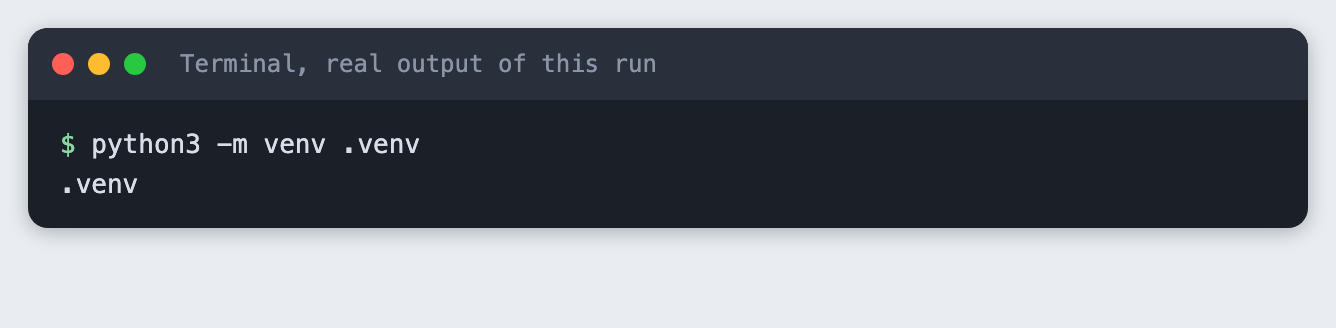
This makes a .venv folder that holds a private copy of Python. Activate it with source .venv/bin/activate on macOS and Linux, or .venv\Scripts\activate on Windows. The Windows command is from the Python docs and was not run.
Step 3. Install the packages
Save this as requirements.txt. anthropic is the library that calls the model. debugpy is the debugger VS Code uses for Python. The Python extension installs its own debugger too, so debugpy here is only needed for the check in Step 8.
anthropic>=2.7.0
debugpy>=1.8
File: requirements.txt
pip install -r requirements.txt
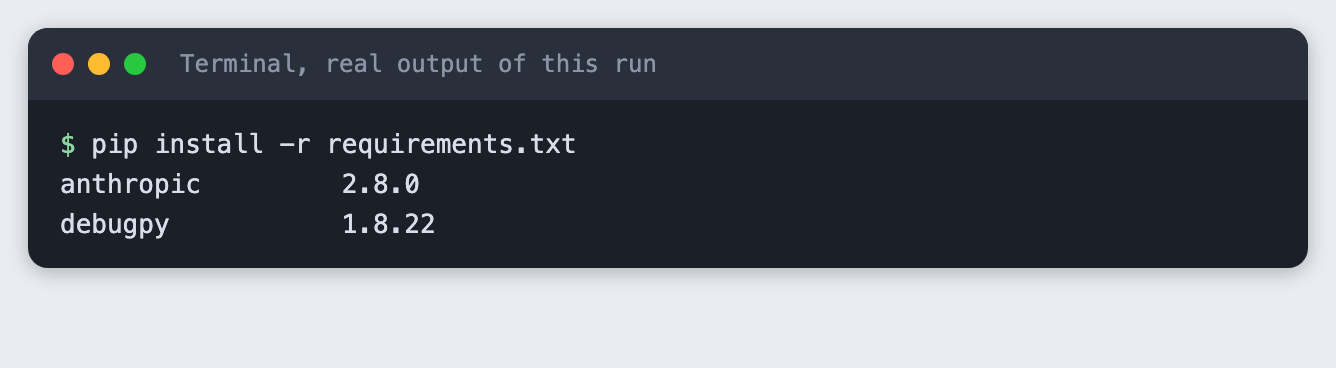
Step 4. Select the interpreter
The interpreter is the Python that runs your code. In VS Code press Cmd+Shift+P (Ctrl+Shift+P on Windows and Linux), choose "Python: Select Interpreter" and pick the one inside .venv. This needs the Microsoft Python extension. Not run: this click path is described, not tested.
To make the choice part of the project, create .vscode/settings.json:
{
    "python.defaultInterpreterPath": "${workspaceFolder}/.venv/bin/python",
    "python.terminal.activateEnvironment": true
}
File: .vscode/settings.json
python.defaultInterpreterPath is the starting choice for this workspace. It points at the .venv you just made, so a teammate who opens the folder gets the same one. With the environment active, the terminal should report a Python from .venv:
python -c "import sys; print('python', sys.version.split()[0]); print('running from .venv:', '.venv' in sys.executable)"

Step 5. Write the first script
The script builds a prompt in its own function, so you have something clear to inspect in the debugger. It makes one call with a small max_tokens, with thinking turned off, and prints the reply and the token counts.
import os
import sys

from anthropic import Anthropic

MODEL = "claude-haiku-5-5"


def build_prompt(topic):
    return f"Write one short, friendly sentence that welcomes a beginner to {topic}."


def main():
    if not os.environ.get("ANTHROPIC_API_KEY"):
        sys.exit("ANTHROPIC_API_KEY is not set. Add it to a .env file or export it first.")

    topic = sys.argv[1] if len(sys.argv) > 1 else "Python in Visual Studio Code"
    prompt = build_prompt(topic)

    client = Anthropic()
    response = client.messages.create(
        model=MODEL,
        max_tokens=100,
        thinking={"type": "disabled"},
        messages=[{"role": "user", "content": prompt}],
    )
    text = "".join(block.text for block in response.content if block.type == "text").strip()

    print(f"Prompt: {prompt}")
    print(f"Reply:  {text}")
    print(f"[tokens used: {response.usage.input_tokens} in, {response.usage.output_tokens} out]")


if __name__ == "__main__":
    main()
File: hello_haiku.py
Put your key in a file called .env next to the script, as one line, ANTHROPIC_API_KEY= followed by your key. Never paste the key into the code. The .gitignore in this project already lists .env, so it is not committed.
First see what a mistake looks like. Run the script with no key set:
python hello_haiku.py
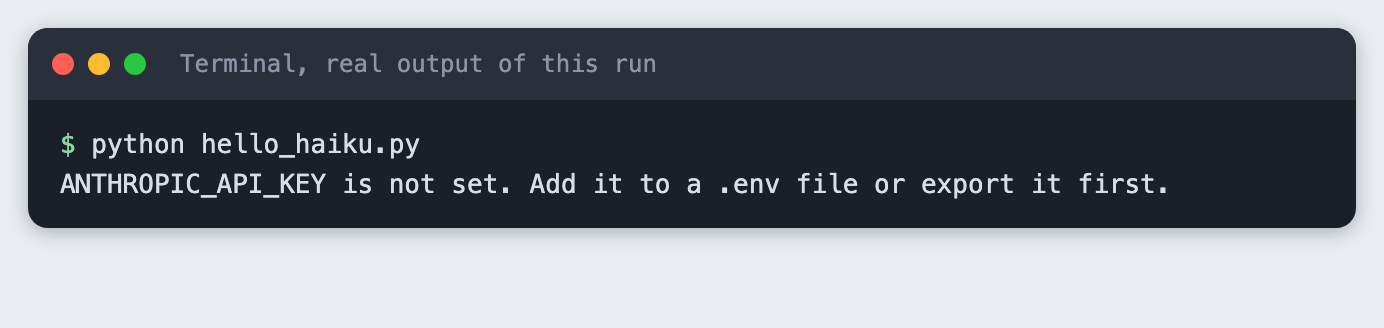
The script stops with exit code 1 and a plain message. Now run it with the key available:
python hello_haiku.py

The call used 39 input tokens and 46 output tokens. The reply will be different each time you run it.
Step 6. Add the launch configuration
Create .vscode/launch.json:
{
    "version": "0.2.0",
    "configurations": [
        {
            "name": "Run hello_haiku.py",
            "type": "debugpy",
            "request": "launch",
            "program": "${workspaceFolder}/hello_haiku.py",
            "args": ["debugging in VS Code"],
            "envFile": "${workspaceFolder}/.env",
            "console": "integratedTerminal"
        }
    ]
}
File: .vscode/launch.json
program is the file to run. args are the command-line arguments, so the script receives "debugging in VS Code" as its topic. envFile loads your .env, so the key reaches the script. type is debugpy, the name current versions of the Python extension use. Older guides write python. Check the files are valid JSON and point at a real script:
python check_launch.py
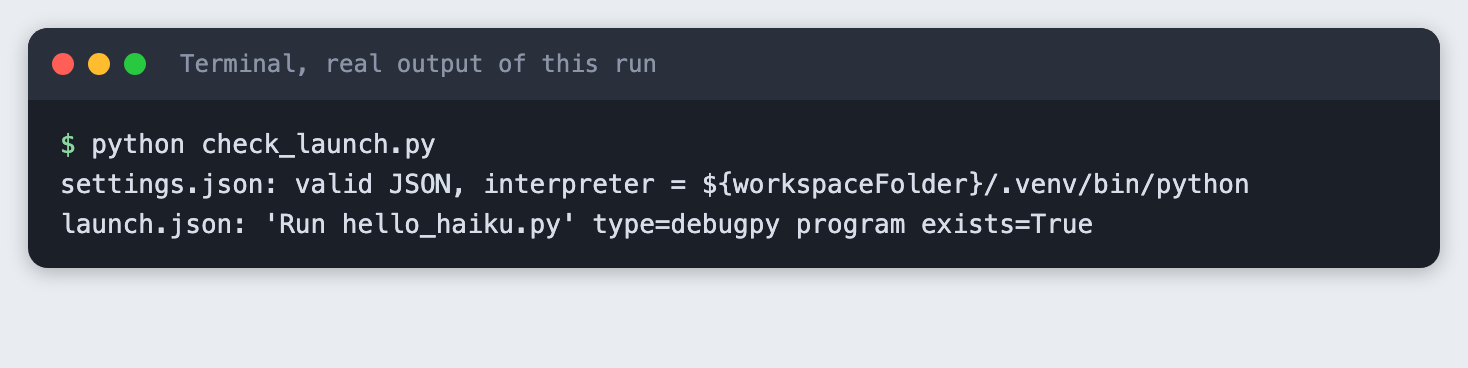
This checks the files only. It does not prove VS Code accepts the configuration. Not run: pressing F5 in the window.
Step 7. Walk through a breakpoint (not run in VS Code)
A breakpoint tells the debugger to pause before a line runs. In the editor you would:
- Click in the gutter to the left of the line number for
client = Anthropic(). A red dot appears. - Press F5 and choose "Run hello_haiku.py".
- The program pauses on that line. The Variables panel shows
topicandprompt. - Press F10 to run one line, or F5 to continue to the end.
This is the described path. It was not run in a window.
Step 8. See the debugger stop, from the terminal
To check the debugging part for real, debug_check.py talks to debugpy directly, using the same protocol VS Code uses. It sets a breakpoint on the client = Anthropic() line, runs the script until it stops, prints the variables, and ends the program before the API call.
"""Drive debugpy, the debugger VS Code uses, from a script.

Sets one breakpoint on the line `client = Anthropic()` in hello_haiku.py, runs the
program until it stops there, prints the local variables, then ends the program
before the API call. This is the same sequence of requests VS Code sends when you
press F5 with a breakpoint set.
"""
import json
import subprocess
import sys
from pathlib import Path

SCRIPT = (Path(__file__).parent / "hello_haiku.py").resolve()
LINE = next(i for i, t in enumerate(SCRIPT.read_text().splitlines(), 1) if "client = Anthropic()" in t)

adapter = subprocess.Popen([sys.executable, "-m", "debugpy.adapter"], stdin=subprocess.PIPE, stdout=subprocess.PIPE)
seq = 0


def send(command, arguments=None):
    global seq
    seq += 1
    body = json.dumps({"seq": seq, "type": "request", "command": command, "arguments": arguments or {}}).encode()
    adapter.stdin.write(b"Content-Length: %d\r\n\r\n" % len(body) + body)
    adapter.stdin.flush()
    return seq


def read():
    length = 0
    while True:
        line = adapter.stdout.readline().strip()
        if not line:
            break
        if line.lower().startswith(b"content-length:"):
            length = int(line.split(b":")[1])
    return json.loads(adapter.stdout.read(length))


def wait_for(match):
    while True:
        msg = read()
        if match(msg):
            return msg


def call(command, arguments=None):
    want = send(command, arguments)
    return wait_for(lambda m: m["type"] == "response" and m["request_seq"] == want)


call("initialize", {"adapterID": "debugpy", "linesStartAt1": True, "columnsStartAt1": True})
send("launch", {"program": str(SCRIPT), "args": ["debugging in VS Code"], "console": "internalConsole",
                "python": [sys.executable], "env": {"ANTHROPIC_API_KEY": "placeholder-not-used"}})
wait_for(lambda m: m.get("event") == "initialized")
resp = call("setBreakpoints", {"source": {"path": str(SCRIPT)}, "breakpoints": [{"line": LINE}]})
print(f"Breakpoint set on line {LINE} of hello_haiku.py, verified={resp['body']['breakpoints'][0]['verified']}")
call("configurationDone")
stopped = wait_for(lambda m: m.get("event") == "stopped")
print(f"Stopped: reason={stopped['body']['reason']}")
thread = stopped["body"]["threadId"]
frame = call("stackTrace", {"threadId": thread})["body"]["stackFrames"][0]
print(f"Paused in {frame['name']}() at line {frame['line']}")
scopes = call("scopes", {"frameId": frame["id"]})["body"]["scopes"]
local = next(s for s in scopes if s["name"] == "Locals")
for var in call("variables", {"variablesReference": local["variablesReference"]})["body"]["variables"]:
    if var["name"] in ("topic", "prompt"):
        print(f"  {var['name']} = {var['value']}")
call("disconnect", {"terminateDebuggee": True})
adapter.terminate()  # the adapter waits for a new session, so stop it ourselves
adapter.wait(timeout=10)
print("Program ended at the breakpoint. No API call was made.")
File: debug_check.py
python debug_check.py
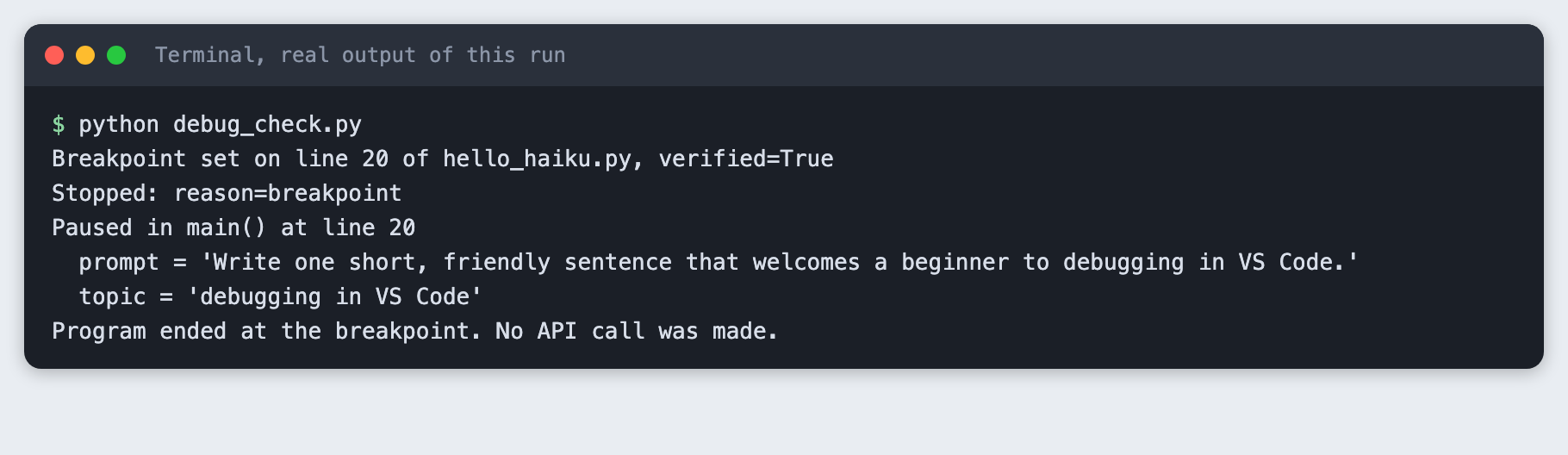
The breakpoint on line 20 was verified, the program stopped with reason breakpoint inside main(), and the debugger reported topic as 'debugging in VS Code' and the full text of prompt. No API call was made in this step. This shows the debugger and the script work. It does not show the VS Code window.
Troubleshooting
- VS Code uses the wrong Python. Run "Python: Select Interpreter" again and pick the
.venventry. If it is missing, check that the Python extension is installed and that.venvis in the opened folder. ModuleNotFoundError: No module named 'anthropic'. The environment is not active or the install did not finish. Activate it and runpip install -r requirements.txtagain.ANTHROPIC_API_KEY is not setwhen you press F5. Check that.envis in the workspace folder and thatenvFileinlaunch.jsonpoints at it.- The breakpoint turns grey. The debugger did not attach to that line. Make sure you started with F5, not the plain Run button, and that the line is code, not a blank line or a comment.
Frequently asked questions
How do I set up Python in VS Code for an AI hackathon?
Open a project folder, create a .venv, install your packages into it, and set python.defaultInterpreterPath in .vscode/settings.json. In the test the interpreter reported that it ran from .venv and both packages installed.
How do I make my first Claude call from Python?
Install anthropic, set ANTHROPIC_API_KEY, and call client.messages.create with model, max_tokens and messages. The script above used 39 input tokens and 46 output tokens for one short reply.
How do I debug a Python script in VS Code?
Add a .vscode/launch.json with a debugpy configuration, click the gutter to set a breakpoint, and press F5. The terminal check in Step 8 stopped on line 20 and showed the values of topic and prompt.
What to try next
- Add a second breakpoint after the call and look at
response. - Change the
argsinlaunch.jsonto another topic. - Add a second launch configuration that runs the script with no arguments.
How this tutorial was tested
Every command and screenshot above comes from one real run on 12 November 2026. The code in the blocks is copied from the project files, not retyped. The steps were then run again from an empty folder, and all of them passed. The screenshots show the saved output of those commands in a terminal-style frame.
Not run: the VS Code window itself, including Open Folder, Select Interpreter, pressing F5 and the Variables panel. These steps are described from how the editor works, with no window images. The code command was not installed on the test machine. Windows and Linux were not tested. Real VS Code behaviour with launch.json should be checked by a person.